Getting Started
Thanks for installing Sheets2Mailchimp!
Unlock the full potential of your Mailchimp™ audiences by syncing them with Google Sheets™, combining the robust features of both platforms to supercharge your data management.
Get Started with Sheets2Mailchimp in a Few Easy Steps
-
1
Open Your Spreadsheet
Start with an existing Google Sheet or create a new one. You can use any Google Sheet in your Google Drive account.
-
2
Access Sheets2Mailchimp
Click on the Sheets2Mailchimp logo located in the sidebar on the right of your screen. If it's your first time, you might need to refresh your browser to see the add-on.
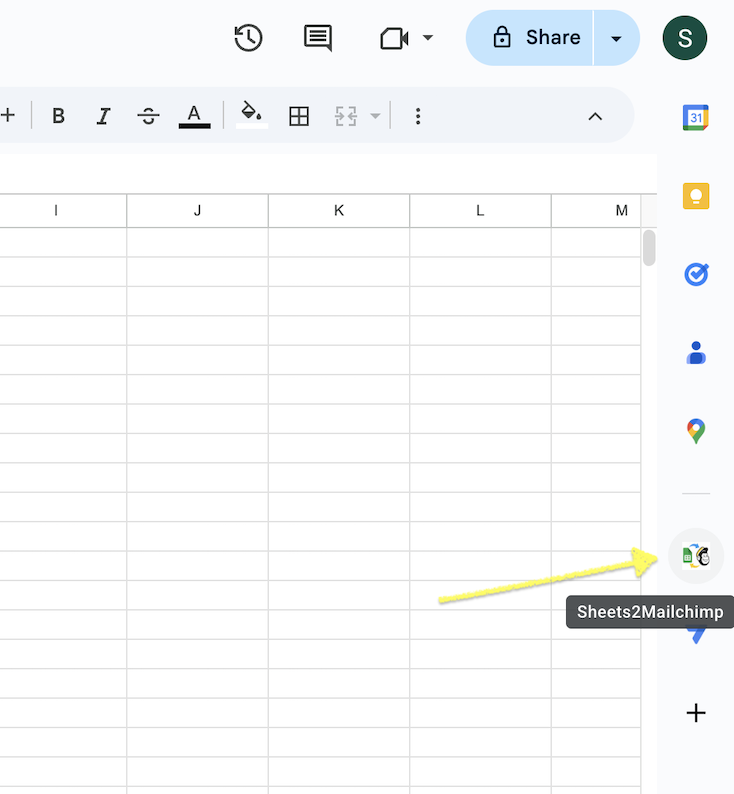
Sheets2Mailchimp appears in the right sidebar
-
3
Connect and Sync
Follow the on-screen instructions to connect your Mailchimp™ account using secure OAuth authentication. Start using manual sync to import your subscribers from Mailchimp into Google Sheets™.
Troubleshooting Tips
-
Can't see the app?
Refresh your Google Sheets. If your screen is small or you have multiple apps installed, look for Sheets2Mailchimp under the three horizontal dots at the bottom of the sidebar.
-
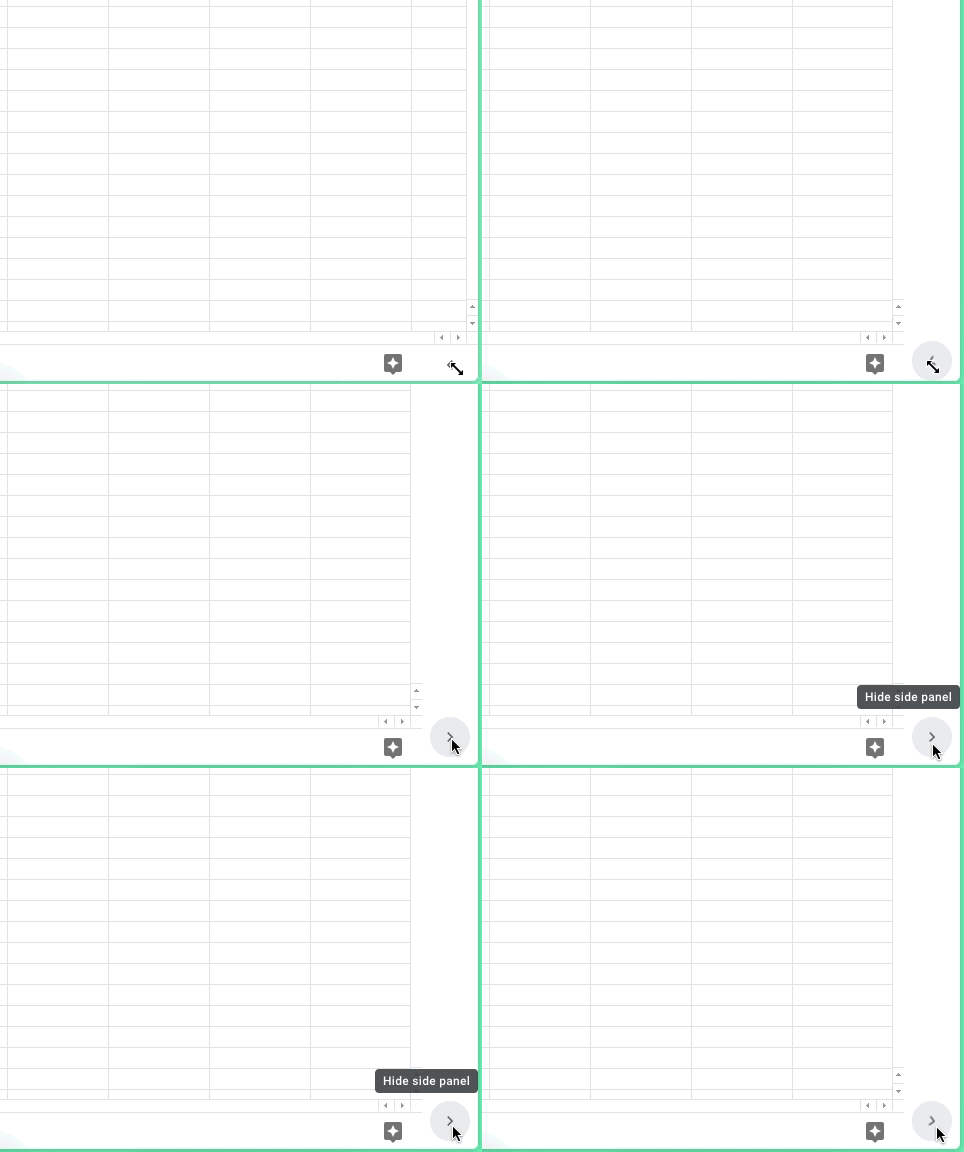
Missing the sidebar?
Click the arrow in the bottom right corner of your screen to expand it. The sidebar contains all your installed Google Workspace add-ons.
Ready to Get Started?
With Sheets2Mailchimp, you're ready to leverage the best of both worlds—effortlessly analyze, visualize, and back up your Mailchimp™ data using Google Sheets™. Let's get started!
Install the Add-on Install the Add-on